If your smart thermostat drops offline randomly, start by checking your Wi-Fi connection. Make sure the signal is strong, and consider moving the router closer or using a Wi-Fi extender. Next, reboot your thermostat by turning off the power for a few minutes. Check for firmware updates through the app and make sure all wiring is intact. Finally, look for any devices that might interfere with your Wi-Fi. There are more steps you can take to enhance your thermostat’s reliability.

Get home appliances delivered free — and shop member deals
- Fast, free delivery on millions of items
- Access to Prime Big Deal Days deals on October 6–7
- Prime Video, Amazon Music and more included
Key Takeaways
- Check the Wi-Fi signal strength; consider moving the router closer or using a Wi-Fi extender for better connectivity.
- Reboot the thermostat by turning off power or removing batteries, then wait a few minutes before powering back on.
- Ensure your thermostat’s firmware is updated regularly through the app or settings to improve functionality and reduce connectivity issues.
- Inspect the wiring for loose or damaged connections, ensuring all wires are secure and undamaged.
- Minimize interference by relocating devices that may disrupt the Wi-Fi signal and ensure a stable home network setup.
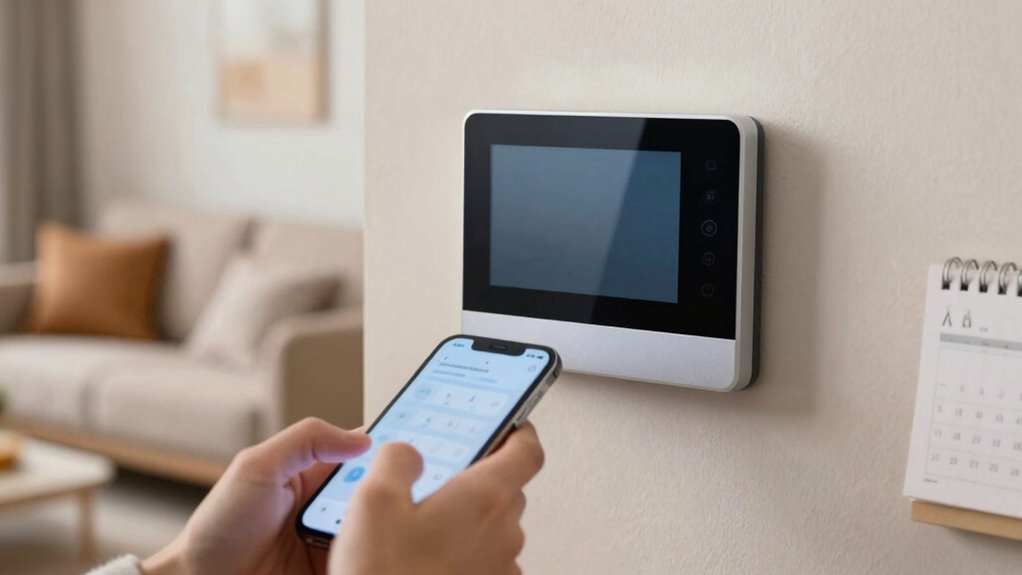
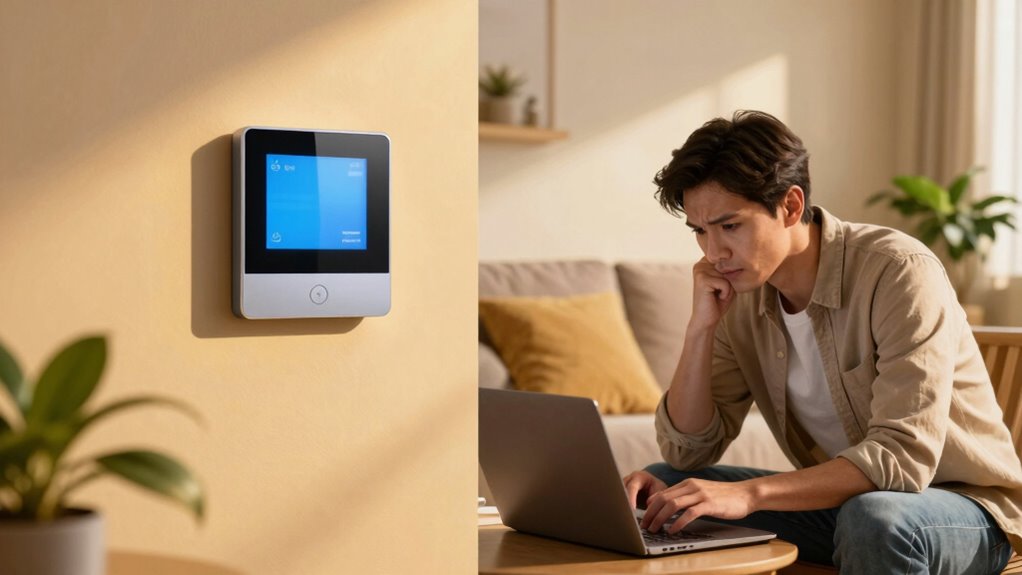
When it comes to managing your home’s temperature, smart thermostats promise convenience and efficiency, but they can also bring a host of issues. One frustrating problem you might encounter is your smart thermostat dropping offline randomly. This can disrupt your comfort and leave you feeling helpless. Fortunately, there are several troubleshooting techniques you can employ to address this issue and restore thermostat connectivity.
First, check your Wi-Fi connection. A weak or fluctuating signal can lead to disconnects. Verify your router is functioning properly and that the thermostat is within range. If it’s too far from the router, consider moving the router closer or using a Wi-Fi extender. You might be surprised how much a strong connection can improve your thermostat’s performance. Ensuring Wi-Fi network stability is crucial for maintaining consistent communication with your smart thermostat. Additionally, monitoring your network’s bandwidth usage can help identify if other devices are consuming excessive resources, which may impact your thermostat’s connectivity.
Check your Wi-Fi connection; a strong signal is vital for your thermostat’s performance and reliability.
Next, reboot your thermostat. Sometimes, a simple reset can resolve connectivity issues. Turn off the power to the thermostat either at the circuit breaker or by removing the batteries, if applicable. Wait for a few minutes, then power it back on. This often clears minor glitches that can cause it to drop offline.
If that doesn’t work, check for firmware updates. Manufacturers frequently release updates to improve functionality and connectivity. Open the associated app on your smartphone or access the thermostat’s settings to see if there’s an update available. Keeping your device up-to-date can greatly enhance its reliability.
You should also inspect the wiring. Loose or damaged wires can lead to connectivity problems. Turn off the power and carefully remove the thermostat from the wall to check the connections. Verify all wires are securely connected and aren’t frayed or damaged. If you’re unsure about this process, don’t hesitate to seek professional help.
Another useful technique is to check for interference. Sometimes, other devices in your home can disrupt the Wi-Fi signal. Move any potential sources of interference, such as microwaves or cordless phones, away from your router. Reducing interference can improve your thermostat connectivity. Being aware of electromagnetic interference sources in your home can help you prevent future connectivity issues.
Additionally, home network setup plays a significant role in device connectivity. Ensuring your network is stable and not overloaded can help prevent random disconnections.
Lastly, if you’re still having trouble, consider reaching out to customer support. They can provide specific troubleshooting techniques tailored to your thermostat model. They might help you identify issues you hadn’t considered.
Wi-Fi extender for smart thermostats
As an affiliate, we earn on qualifying purchases.
As an affiliate, we earn on qualifying purchases.
Frequently Asked Questions
Can Environmental Factors Affect My Smart Thermostat’s Connectivity?
Yes, environmental factors can affect your smart thermostat’s connectivity. Wi-Fi interference from walls, appliances, or even neighboring networks can weaken the signal strength. If your thermostat’s too far from the router or obstructed by furniture, it might struggle to stay connected. Additionally, heavy electronic devices can disrupt the Wi-Fi signal. To improve connectivity, try relocating your router or minimizing obstacles between it and your thermostat.
How Often Should I Check My Thermostat’s Software Updates?
You should check your thermostat’s software updates at least once a month. Regular software maintenance keeps your device running smoothly and guarantees it’s equipped with the latest features and security patches. If your thermostat notifies you of an available update, don’t ignore it; timely updates can improve performance and connectivity. Staying on top of update frequency helps prevent issues down the line, keeping your home comfortable and energy-efficient.
Is My Smart Thermostat Still Functional Without Wi-Fi?
Your smart thermostat can still function without Wi-Fi, like a ship steering by stars when technology fails. You’ll have local control over temperature settings, and it should maintain emergency settings to keep your home comfortable. However, you won’t access remote features or updates until it reconnects. So, check your device’s manual for specifics to guarantee it operates effectively in offline mode. Stay cozy, even when the internet’s down!
What Are Common Signs of a Failing Smart Thermostat?
Common signs of a failing smart thermostat include erratic temperature readings, unresponsive controls, and unexpected temperature changes. You might notice frequent connectivity issues, where it disconnects from Wi-Fi or struggles to reconnect. Additionally, if you see any thermostat warning signs on the display, like error messages, it’s a red flag. Keep an eye on these issues, as they could indicate it’s time for a replacement or repair.
Can I Control My Thermostat Remotely if It Goes Offline?
If your smart thermostat goes offline, you can’t control it remotely. For example, imagine you’re on vacation, hoping to adjust the temperature, but find you can’t access it. Start with troubleshooting tips: check your Wi-Fi connection, restart your thermostat, or verify the app is updated. If it reconnects, you’ll regain remote access and can manage your home’s comfort again. Keep an eye on your device to prevent future issues.
smart thermostat firmware update kit
As an affiliate, we earn on qualifying purchases.
As an affiliate, we earn on qualifying purchases.
Conclusion
When your smart thermostat drops offline, it’s like a sudden winter chill in your home—unwelcome and frustrating. But don’t fret! By checking your Wi-Fi connection, rebooting your device, and ensuring software updates are in place, you can quickly warm things up again. If the problem persists, contacting customer support can help you get back on track. With a little troubleshooting, you’ll have your home cozy and comfortable in no time!
smart thermostat wiring repair kit
As an affiliate, we earn on qualifying purchases.
As an affiliate, we earn on qualifying purchases.
As an affiliate, we earn on qualifying purchases.
Fall yard work Picks
leaf blowers
As an affiliate, we earn on qualifying purchases.