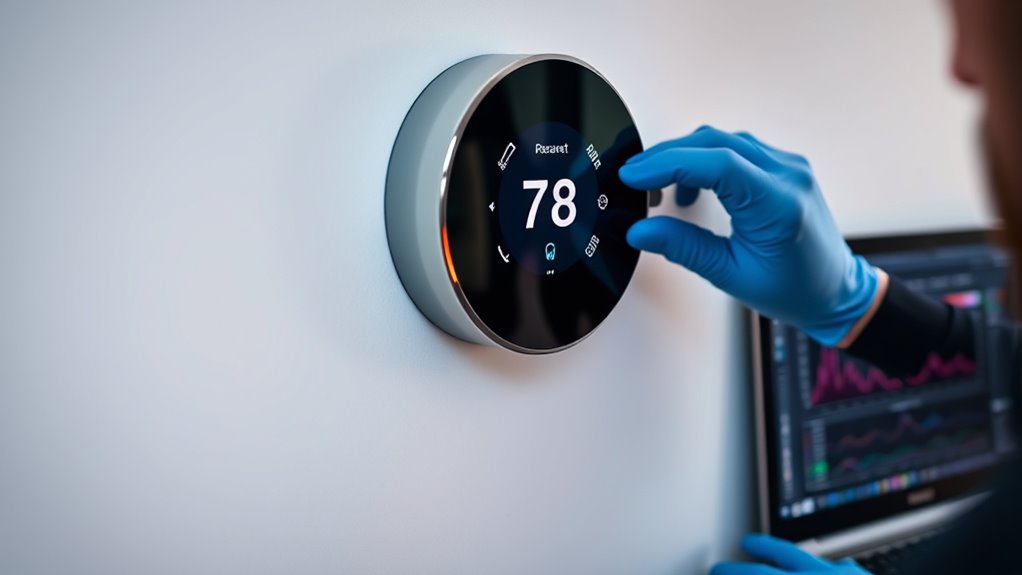

If you’re having Wi-Fi issues with your smart thermostat, start by checking for firmware updates and ensuring the device is connected to the correct Wi-Fi network, preferably on the 2.4 GHz band. Restart your modem, router, and thermostat to refresh connections. If problems persist, re-enter network details or perform a factory reset and reconfigure. Keeping software current and verifying network stability often solves most connectivity hiccups—continue to explore these steps for a smoother setup.
Key Takeaways
- Restart your Wi-Fi router and thermostat to refresh the network connection.
- Ensure the thermostat is connected to the correct Wi-Fi band (2.4 GHz recommended).
- Check for available firmware updates through the app or thermostat interface.
- Verify Wi-Fi credentials and re-enter them if the connection is lost.
- Perform a factory reset if persistent issues remain, then reconfigure the Wi-Fi settings.

Wi-Fi connectivity issues in thermostats can disrupt your comfort and control, but many problems are simple to diagnose and fix. When your thermostat struggles to connect to your Wi-Fi network, one of the first steps is to ensure it has the latest software. Many smart thermostats support remote firmware updates, which can fix bugs, improve stability, and add new features. Check your app or thermostat interface for available updates. If an update is pending, follow the prompts to install it. Keeping your thermostat’s firmware current often resolves connectivity hiccups caused by software glitches.
If updating doesn’t work, try a power cycle. Power cycling your thermostat is a straightforward way to reset its network connection and clear temporary glitches. To do this, turn off the thermostat, either through the device itself or via your app. Unplug it from power if it’s wired or remove batteries if applicable. Wait for about 30 seconds to a minute, then turn it back on. This simple step can often resolve minor software conflicts that prevent Wi-Fi connection. After restarting, check if the thermostat reconnects to your Wi-Fi network automatically. If not, you might need to re-enter your Wi-Fi credentials, which can sometimes be lost during a power cycle.
Additionally, confirm your Wi-Fi network is functioning properly. Restart your modem and router to refresh the network connection. Sometimes, the problem isn’t with the thermostat but with your internet service. Verify that other devices can connect to Wi-Fi without issues. If not, reset your router or contact your internet provider for support.
Another tip is to verify that your thermostat’s Wi-Fi settings are correct. Sometimes, the network name or password may have changed, or the device might have lost saved credentials. Access your thermostat’s setup menu and re-enter your Wi-Fi network information carefully. Make sure your network operates on a compatible band; many thermostats only support 2.4 GHz Wi-Fi, not 5 GHz, so verify that your device is connected to the correct band. It’s also helpful to review cost and budgeting considerations when planning for a new or replacement thermostat, especially if multiple devices are involved in your smart home setup.
If you’ve tried all these steps and still face issues, consider resetting your thermostat to factory settings. Keep in mind, this will erase any custom settings, so only do it if necessary. After resetting, reconfigure your Wi-Fi connection, update the firmware if needed, and perform a power cycle to ensure everything runs smoothly. Troubleshooting Wi-Fi problems can be straightforward when you systematically check updates, restart devices, and verify network settings, bringing back seamless control over your thermostat’s performance.
Frequently Asked Questions
Can a Weak Wi-Fi Signal Affect Thermostat Performance?
A weak Wi-Fi signal can definitely affect your thermostat performance. When the Wi-Fi signal is unstable, your thermostat may struggle with firmware updates or lose connection, disrupting its operation. To fix this, restart your router, minimize device interference, and check security settings. Improving your Wi-Fi signal ensures smooth communication, maintaining ideal thermostat performance and reliable control, especially during updates or remote access.
How Often Should I Update My Thermostat’s Firmware?
You should update your thermostat’s firmware whenever a new version is available, ideally every few months. Firmware updates improve device compatibility, fix bugs, and enhance performance. Regular updates ensure your smart thermostat operates smoothly with your Wi-Fi network and other devices. Check the manufacturer’s app or website periodically, and install updates promptly to maintain peak functionality and security. Staying current helps prevent issues and keeps your thermostat running efficiently.
Is It Necessary to Restart My Router Regularly?
Think of your router resets as watering a garden—regular care keeps everything thriving. You don’t need to restart your router daily, but doing it weekly can boost network stability, especially if you notice slow Wi-Fi or dropped connections. Restarting clears out bugs and refreshes your connection. So, schedule routine router resets to maintain a strong, reliable network, helping your smart thermostat stay connected and functioning smoothly.
Can Multiple Devices Interfere With My Thermostat’s Wi-Fi?
Yes, multiple devices can cause Wi-Fi interference and device congestion, which might disrupt your thermostat’s connection. When many gadgets are using the same network, it can slow down bandwidth and create interference signals. To improve performance, consider reducing the number of devices connected simultaneously or upgrading to a higher bandwidth plan. Keeping your Wi-Fi router updated and placing it centrally can also help minimize interference and guarantee your thermostat stays connected.
What Security Settings Can Cause Connectivity Issues?
Ever wonder if security settings are blocking your smart thermostat? Incorrect Wi-Fi encryption, like outdated WPA or WPA2 protocols, can prevent your device from connecting properly. Similarly, firewall settings might be too restrictive, blocking essential communication between your thermostat and Wi-Fi network. Confirm your network uses current Wi-Fi encryption and adjust firewall settings to allow necessary traffic. These steps help maintain smooth connectivity and keep your smart thermostat functioning at its best.
Conclusion
By following these troubleshooting steps, you can restore your smart thermostat’s Wi-Fi connection and regain control of your comfort. Think of your thermostat as the heart of your home’s climate—when it beats steadily, everything runs smoothly. Don’t let connectivity issues freeze your progress; instead, troubleshoot confidently and keep your home cozy and connected. Remember, persistence is the key to turning a cold silence into warm, seamless control.