To reset your smart thermostat quickly, first verify your Wi Fi connection and restart your router if needed. If your device has a touchscreen, go to the settings menu and select ‘Reset’ or ‘Factory Reset’, then follow prompts. For models without a touchscreen, locate the physical reset button (usually behind a panel) and hold it for 5-10 seconds. After the reset, check for firmware updates and reconfigure your settings; you’ll find useful tips if you keep exploring.

Get home appliances delivered free with Prime
- Fast, free delivery on millions of items
- Prime Video, Amazon Music and more included
- Member-only deals all year
Key Takeaways
- Ensure your Wi Fi connection is stable before resetting to prevent ongoing issues.
- Use the device settings menu or app to select ‘Reset’ or ‘Factory Reset.’
- For devices without a touchscreen, press and hold the physical reset button for 5-10 seconds.
- After resetting, check for firmware updates and install if available to optimize performance.
- Reconfigure device settings post-reset and verify connection stability for smooth operation.
Quick Guide to Resetting Your Smart Thermostat
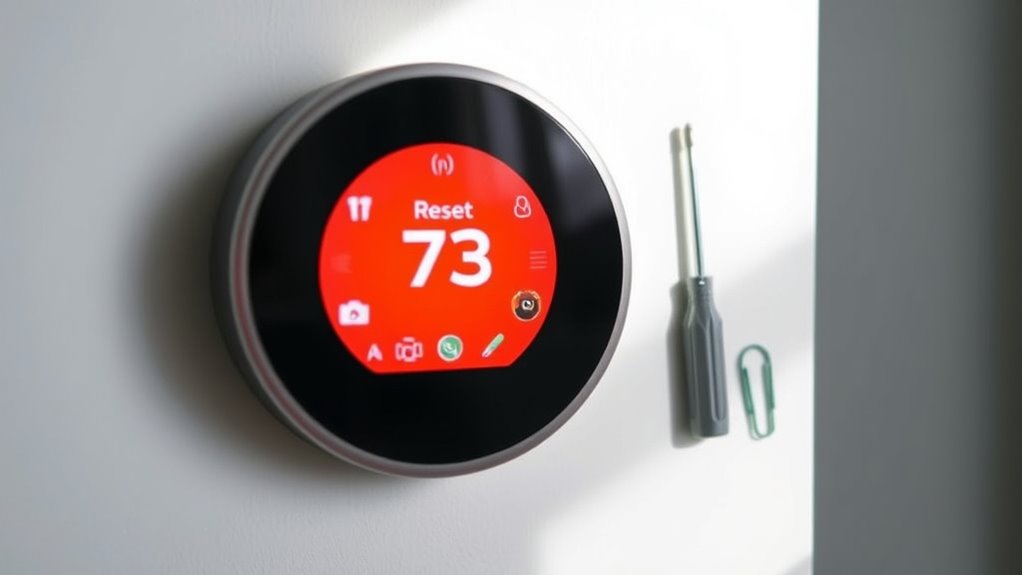
Resetting your smart thermostat can often resolve connectivity issues, fix unresponsive displays, or restore factory settings. If you’re experiencing trouble connecting to Wi Fi or noticing that firmware updates aren’t installing properly, a simple reset might do the trick. Many smart thermostats rely heavily on Wi Fi connectivity for remote control and updates, so addressing these issues can quickly restore normal function.
Resetting your smart thermostat can fix connectivity issues, unresponsive screens, and restore factory settings for better performance.
First, check your Wi Fi connection. Sometimes, a weak or unstable network causes the thermostat to lose connection or prevents it from receiving firmware updates. Before resetting, ensure your Wi Fi network is stable by testing other devices. If your Wi Fi is spotty, restarting your router can help. Power it off for about 30 seconds, then turn it back on and wait for it to reboot fully. Once your network is stable, proceed with resetting your thermostat to clear any lingering glitches. Ensuring your Wi Fi network stability is crucial for optimal device performance.
Most smart thermostats can be reset directly from the device or their app. If your model has a touchscreen, look for a settings menu—usually represented by a gear icon. Navigate to ‘Reset’ or ‘Factory Reset,’ and follow the prompts. This process often involves confirming your choice, which erases personalized settings and restores the device to its original state. If your thermostat lacks a touchscreen, don’t worry. Many models have a physical reset button, often located behind a panel or on the back. Use a paperclip or similar object to press and hold this button for about 5 to 10 seconds. This action resets the device to factory settings.
Another important step is to ensure your firmware is up-to-date. Firmware updates improve device performance, fix bugs, and enhance security. After resetting, check the app or device interface for available updates. If an update is pending, follow the prompts to install it. Sometimes, a reset can trigger the need for a firmware update, especially if the device was running outdated software. Keeping your firmware current guarantees better Wi Fi connectivity and smoother operation. Additionally, understanding the contrast ratio of your projector can greatly influence your viewing experience, especially in dark rooms. For optimal performance, consider reviewing your network security settings to prevent unauthorized access after resetting.
Frequently Asked Questions
Can I Reset My Smart Thermostat Remotely?
Yes, you can reset your smart thermostat remotely if it supports remote access. Check your device’s app or online platform for reset procedures, as many brands allow you to perform resets through their app. Make certain you’re connected to the internet and logged into your account. Follow the instructions provided in the app to initiate the reset, which typically involves browsing to settings and selecting the reset option.
Will Resetting Erase All My Customized Settings?
Think of resetting your thermostat as hitting a reset button on your favorite playlist—you might lose some favorite tunes, but you get a fresh start. When you perform a factory reset, it clears all custom settings, turning your device back to its original state. If you want to keep your personalized preferences, back them up first; otherwise, be prepared to reconfigure your smart thermostat after the reset.
How Often Should I Reset My Smart Thermostat?
You shouldn’t need to reset your smart thermostat often unless you’re experiencing issues like poor wifi connectivity or battery problems. Reset it only when necessary, such as after a battery replacement or troubleshooting connectivity issues. Frequent resets can erase your customized settings, so do them sparingly. Typically, resetting once every few months or when troubleshooting is sufficient to keep it running smoothly and maintain your preferred settings.
Is a Reset Necessary After Firmware Updates?
Think of firmware updates as tuning your smart thermostat’s engine; they often run smoothly after installation. A reset isn’t always necessary, but it can clear out any lingering bugs and guarantee peak performance. As for reset frequency, only do it if you notice glitches or after major updates. Keeping your device current minimizes the need for frequent resets, letting your thermostat run like a well-oiled machine.
What Should I Do if the Reset Doesn’T Work?
If the reset doesn’t work, you should first check for a software glitch or hardware malfunction. Try turning off the thermostat’s power supply for a few minutes, then turn it back on. If problems persist, consult the manufacturer’s support or consider replacing the device. Sometimes, persistent issues require professional diagnosis, especially if the reset is ineffective due to deeper software or hardware problems.
Conclusion
Resetting your smart thermostat is quick and straightforward, saving you time and frustration. Just follow the simple steps, and you’ll have it up and running again in minutes. Remarkably, some experts suggest that regular resets can help prolong device lifespan by clearing minor glitches. While this isn’t universally proven, it’s a helpful tip to keep your thermostat functioning smoothly. So, don’t hesitate to reset whenever needed—you might even extend its life with this simple trick.
Cold & flu season Picks
humidifiers
As an affiliate, we earn on qualifying purchases.