To set up your smart thermostat, place it within strong Wi-Fi signal range, follow the manufacturer’s instructions to connect to your network, and verify the connection with indicator lights or on-screen messages. Customize the interface to suit your preferences, adjusting brightness and displayed info for easier control. Use built-in sensors and compare readings with a reliable thermometer to calibrate accurately. Ensuring proper setup helps your system run efficiently; learn more for detailed steps.

Get home appliances delivered free with Prime
- Fast, free delivery on millions of items
- Prime Video, Amazon Music and more included
- Member-only deals all year
Key Takeaways
- Connect the thermostat to Wi-Fi by following manufacturer instructions and verifying indicator lights or on-screen messages.
- Customize the display settings, such as brightness and themes, to improve usability and control.
- Use built-in sensors and compare readings with a reliable thermometer to calibrate for temperature accuracy.
- Adjust temperature settings and monitor HVAC responses to ensure proper operation and system responsiveness.
- Verify all setup steps are functioning correctly to ensure reliable communication, control, and energy efficiency.
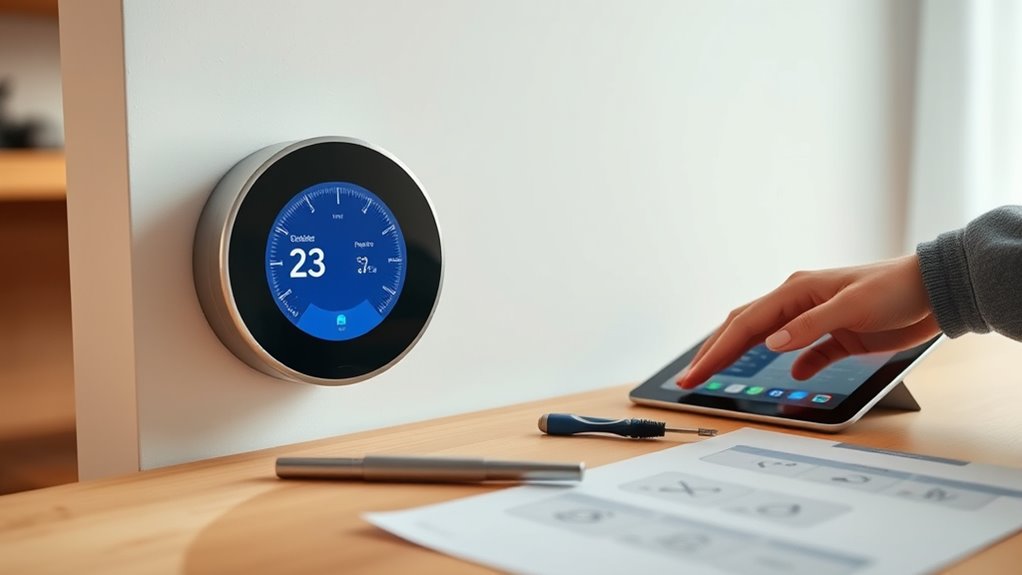
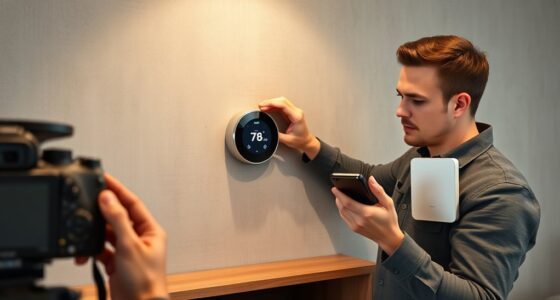
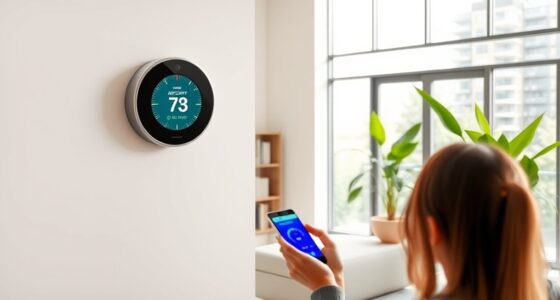
Setting up and calibrating your smart thermostat correctly is vital to make sure it functions efficiently and keeps your home comfortable. The first step is establishing a reliable wireless connectivity. Without a stable Wi-Fi connection, your thermostat won’t be able to communicate with your smartphone, access weather updates, or receive software updates that improve performance. To guarantee a smooth setup, place your thermostat within strong Wi-Fi signal range and avoid interference from other electronic devices. Follow the manufacturer’s instructions to connect your device to your home network, which typically involves selecting your Wi-Fi network and entering the password. Confirm the connection by checking the indicator lights or on-screen message, ensuring your thermostat is online and ready for further configuration.
Ensure your smart thermostat stays connected by placing it within strong Wi-Fi range and following setup instructions carefully.
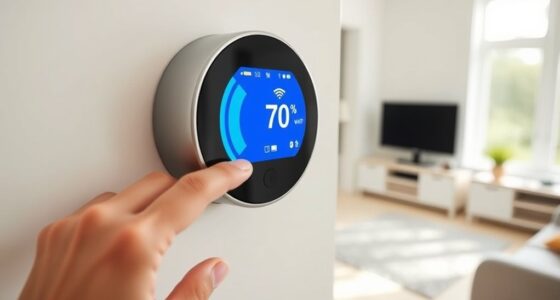
Once wireless connectivity is set, focus on customizing the user interface to suit your preferences. Many smart thermostats let you personalize the display, such as adjusting brightness, selecting themes, or choosing what information appears on your screen. This customization makes it easier to navigate and access relevant controls quickly. Spend a few moments exploring the menu options, so you can tailor the interface to your liking. For example, if you prefer a minimalist look, choose a simple display with only essential data like current temperature and outdoor weather. If you want detailed insights, enable additional metrics such as humidity levels or energy usage. This user interface customization not only improves your experience but also helps you better understand and control your home’s climate.
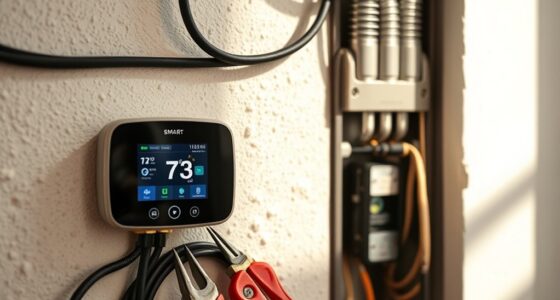
Calibration is the next vital step. Many smart thermostats come with built-in sensors that need calibration to accurately read your home’s temperature. Follow the calibration instructions provided by the manufacturer—this often involves comparing the thermostat’s reading to a separate, reliable thermometer placed nearby. If discrepancies are present, adjust the settings accordingly so the thermostat accurately reflects your actual home temperature. Proper calibration ensures your heating and cooling systems activate only when needed, saving energy and preventing unnecessary wear on your HVAC equipment. Additionally, some models include smart sensors for multiple rooms, which require calibration to balance temperature readings throughout your home, providing consistent comfort. High accuracy in these sensors is essential for optimal performance.
Once you’ve set up wireless connectivity, customized the user interface, and calibrated the device, run a quick test to verify everything works correctly. Adjust the temperature settings, monitor the response of your HVAC system, and ensure the thermostat’s display accurately reflects the changes. By paying attention to these initial setup steps, you’re laying the foundation for an efficient, user-friendly smart thermostat that keeps your home comfortable while optimizing energy use. This careful calibration and personalization will make your smart thermostat an effective tool, providing convenience and peace of mind every day.
Frequently Asked Questions
Can I Install a Smart Thermostat Myself Without Professional Help?
Yes, you can do a DIY installation of a smart thermostat if you’re comfortable with basic wiring and follow the instructions carefully. Make sure to turn off power before starting, and double-check compatibility with your HVAC system. Use calibration tips provided in the manual to guarantee accurate temperature readings. If you encounter complex wiring or feel unsure, it’s best to seek professional help for safety and peak performance.
How Often Should I Recalibrate My Smart Thermostat?
You typically don’t need to recalibrate your smart thermostat often; once a year or if you notice temperature inconsistencies is enough. Calibration frequency can vary based on your usage and climate. Don’t worry—simple maintenance tips, like checking the sensor placement and firmware updates, help keep it accurate. Regularly monitoring your system ensures comfort and efficiency, so recalibration becomes a quick, easy part of your routine.
Will a Smart Thermostat Work With All HVAC Systems?
A smart thermostat doesn’t work with all HVAC systems, so you need to check compatibility first. Look for smart thermostat compatibility details provided by the manufacturer, which specify whether it integrates with your HVAC system type. Most modern systems are compatible, but if you have a heat pump, radiant heating, or a proprietary system, you might face challenges with HVAC system integration. Always verify compatibility before purchasing for seamless operation.
What Features Should I Prioritize During Initial Setup?
During initial setup, prioritize features that enhance energy savings, like scheduling and eco modes. Make certain the user interface is clear and easy to navigate, so you can adjust settings effortlessly. Check that your thermostat connects properly to your Wi-Fi network for remote control. Also, calibrate temperature sensors for accuracy. These steps ensure you maximize energy efficiency and enjoy a seamless user experience from the start.
How Do I Troubleshoot Connectivity Issues?
If you’re experiencing connectivity issues, first check your Wi-Fi signal strength; a weak signal can cause problems. Try moving your router closer or removing obstructions. Restart your thermostat and router to refresh connections. Make sure your thermostat’s firmware is up to date, as updates often fix bugs and improve connectivity. If issues persist, reset your device to factory settings and reconnect, following the manufacturer’s instructions for a smooth setup.
Conclusion
Now that you’ve set up and calibrated your smart thermostat, you’re almost there. But don’t forget—there’s one final step that could change everything. Will your device perform perfectly from the start, or will you need to tweak it further? The key lies in testing and monitoring its behavior over the next few days. Stay attentive, because small adjustments now could lead to big savings later. Ready to access the full potential of your smart home? The choice is yours.
Fall Picks
fall essentials
As an affiliate, we earn on qualifying purchases.